

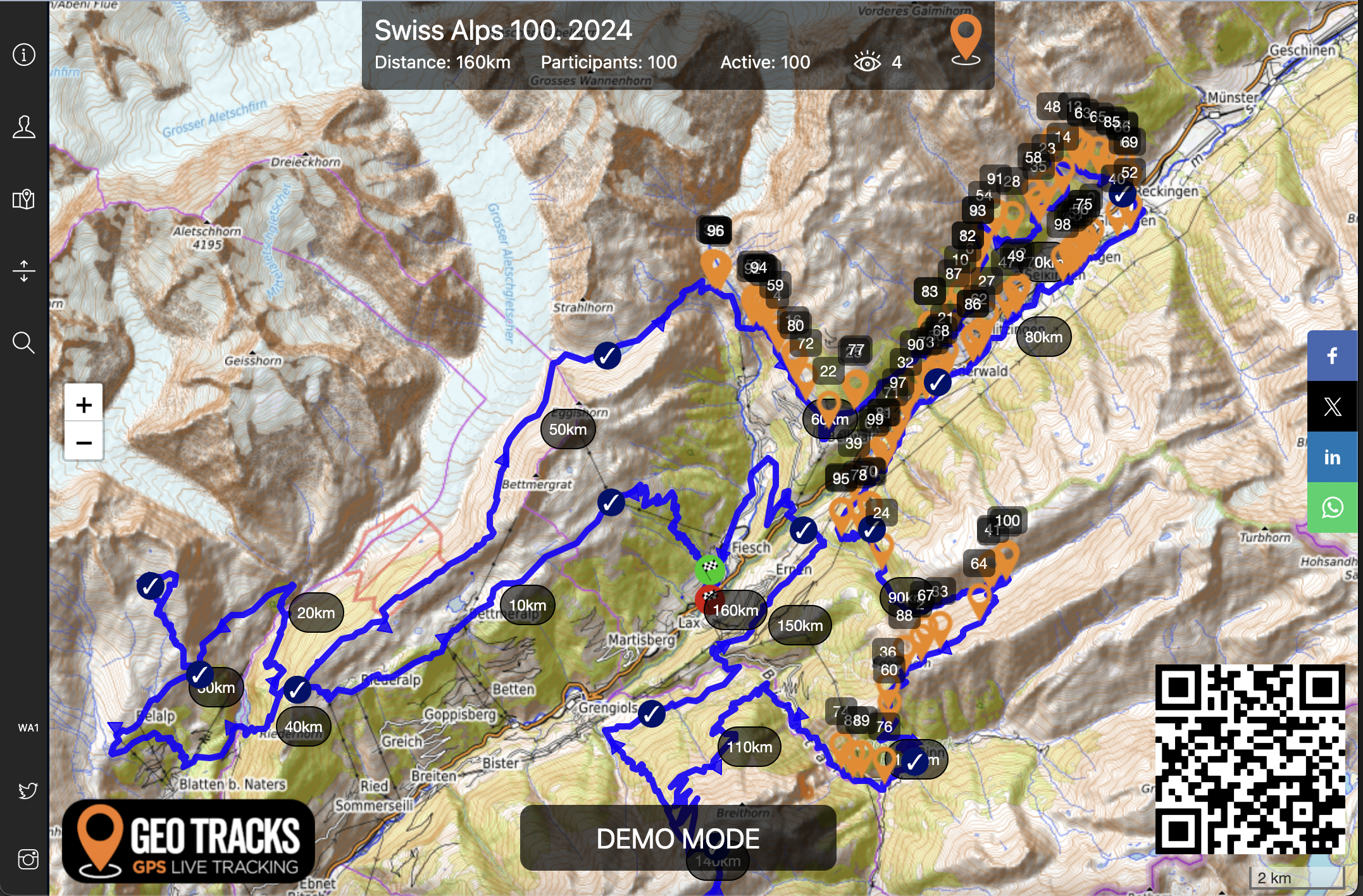
SWISS ALPS 100
Live View
Tracking Map
Follow the Swiss Alps 100 LIVE!
TOP TRACKING TIPS
Share the tracking link with your supporters
Select the course you are doing (the link defaults to the 160 km)
Your tracker is issued, turned on and ready to go. You do not have to do anything to the tracker
Remember to bring the tracker to the start of the event and out on the course!
Collect your tracker from the registration hall
Use the leaderboard to find your name, click the orange download button, then you can select ‘Solo View’, to view your personal tracker. This feature can be reached in various ways
Use the breadcrumb button to see the tracker’s history
Stow your tracker in your running rucksack in an external pocket. DO NOT put it under all your spare kit/water bottles as it will struggle to get a good signal in some remote areas
Please hand your tracker in at the finish line when you have finished.

Participant information
Click on a participant tracker icon to activate their ‘pop up’.
See further details about their:
Name, nationality, category and club
Elapsed time, estimated time to next CP and to the finish. These are calculated relative to the GPX route provided by the event organiser
Progress on the route
Average speed
Battery level
W3W position (at that point in time). This provides a very quick way to relay their location to emergency services or someone trying to meet them on route
Breadcrumbs. Click the breadcrumbs icon to see all the tracker pings
Locate. Click this to zoom in on the location
Total hits. This shows the amount of times the tracker icon has been clicked on (to view the pop-up)

Live leader board
Click on the map and tracker icon on the left-hand side of the screen to display the live leaderboard (or use the burger on a mobile)
Shows position and order of participants
Name, nationality and bib number
Click on the orange download arrow to download the participant’s current GPX file or click on ‘Breadcrumbs’ to see all the GPS ping’s. Hover over a ping to see the date and time stamp
Check point times. Overall and splits. These update as the participants move along the course. The CP time stamp is taken from ‘CP Tick’ is shown on the map
Finish time. Once the participant has finished their final time will be shown
Please note the live leader board is an ‘extra’ paid-for feature (by the organiser) for providing event timing. See our ‘Event Timing’ Page HERE
Live view tracking map
Click on the icons on the left-hand side of the screen (burger on mobile view)
See further details about:
Info button (in a round circle). Shows basic information about the event
Participants (head on shoulders). Shows details on the event participants
Live leaderboard (icon on a folded map). Shows the live leaderboard and results page
Elevation
Top banner
Distance. Shows the total distance of the route (GPX file)
Participants. Shows how many participants were loaded up for event tracking
Active. Shows how many tracked participants are still on the map / active
Views (eye icon) show how many live viewers of the tracking map there is

elevation
Click on a participant tracker icon to activate their ‘pop-up ’.
Then click on the elevation button on the left-hand side of the screen (burger on the mobile)
The elevation line appears as a graph with distance on the bottom, marked along the bottom
Having a participant pop up open and the elevation feature on, enables the viewer to see where on the elevation chart the participant is
Elevation can also be activated as a stand-alone feature on the map

Bread crumbs
Click on a participant tracker icon to activate their ‘pop up’.
Use the breadcrumbs to see where a participant has been and view the time stamp
Click on the Bread crumbs button
Reduce the participant’s pop-up by selecting the down arrow
Zoom in on the map over the breadcrumbs to look at the route taken
Click a Bread crumb to see the time/date stamp at that location
